Gaming on PC (Controller Output)
Your XIM MATRIX supports gaming on PC and outputting (presenting) to it as a:
- Standard XInput controller
- Xbox controller (Xbox authentication controller required)
- DualSense controller (DualSense authentication controller required)
Important
Use controller output when you want your game to use controller aim. If you want your game's aiming method to be native mouse, use mouse and keyboard instead.
Connect Devices
First connect your devices to your XIM MATRIX.

Important
To output as an Xbox controller, you must have an Xbox controller plugged into Port 3 (●●●). Likewise, for DualSense output, you must have a DualSense plugged into Port 3 (●●●).
Input Devices
Connect your wired supported input devices to USB Port 1 (●), or Port 2 (●●), such as:
Wired Mouse and Keyboard
Wireless Mouse and Keyboard
Warning
When gaming with a wireless mouse, you may need additional setup to ensure performance of both your mouse and XIM MATRIX.
Wired Controller

Wireless Controller
Info
Wireless controllers, can be paired after your XIM MATRIX is connected to your PC.
Connect To Your PC
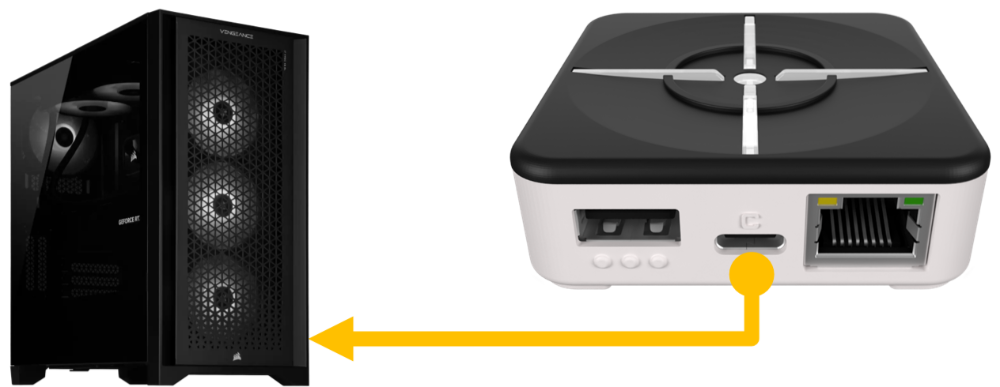
Make sure your PC is powered on and then using the included USB A to C cable (or one you supplied yourself), connect your XIM MATRIX to your PC.

Your XIM MATRIX will turn on and display its startup rainbow sequence.
If you don't yet have a PC Config on your XIM MATRIX, you'll need to create one now.
Creating a PC Config (Controller Output)
To connect to your PC, you must have a Config that has your XIM MATRIX output as an XInput controller.
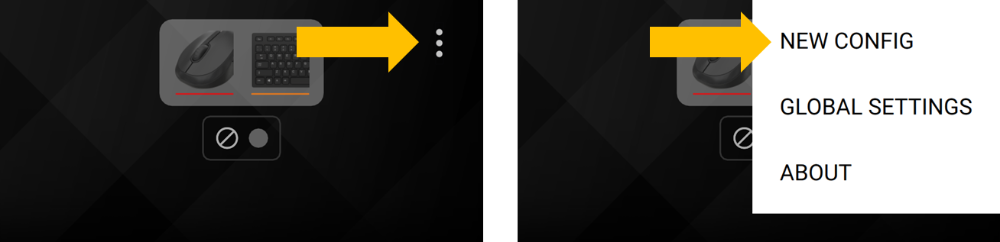
Load XIM MATRIX Manager and create a new Config by pressing the vertical "..." on the top right and selecting New Config:

Shared Configs
You can add a shared Config such as from the XIM Config Cloud library by copying the Config to your clipboard and then selecting it.
Tip
Make sure the review and follow any notes from the creator of the Config you are using.
Custom Configs
To build a custom Config, press Custom.
Select the game you are playing and the platform. When using:
- XInput Output, select PC
- Xbox Controller Output, select Xbox
- DualSense Controller Output, select PlayStation 5
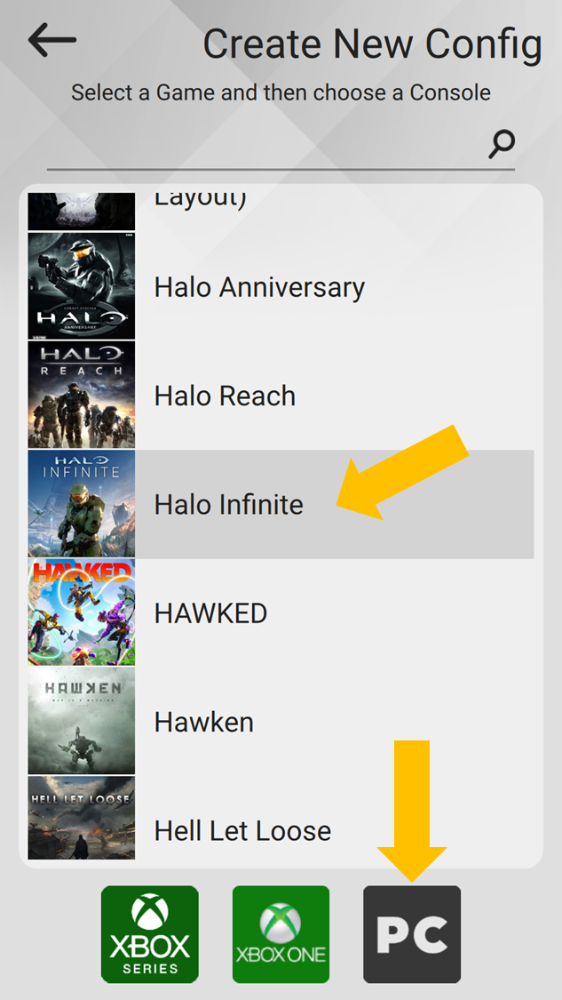
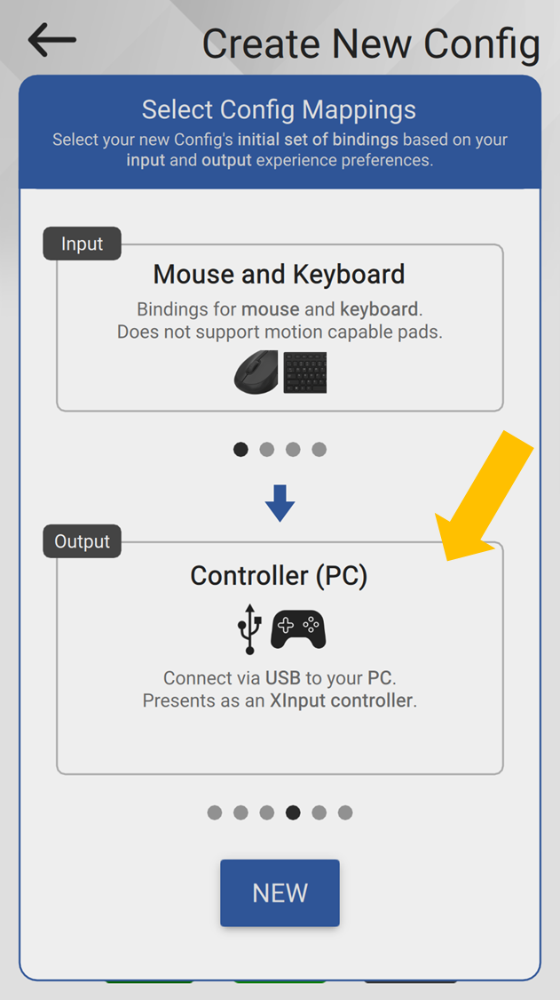
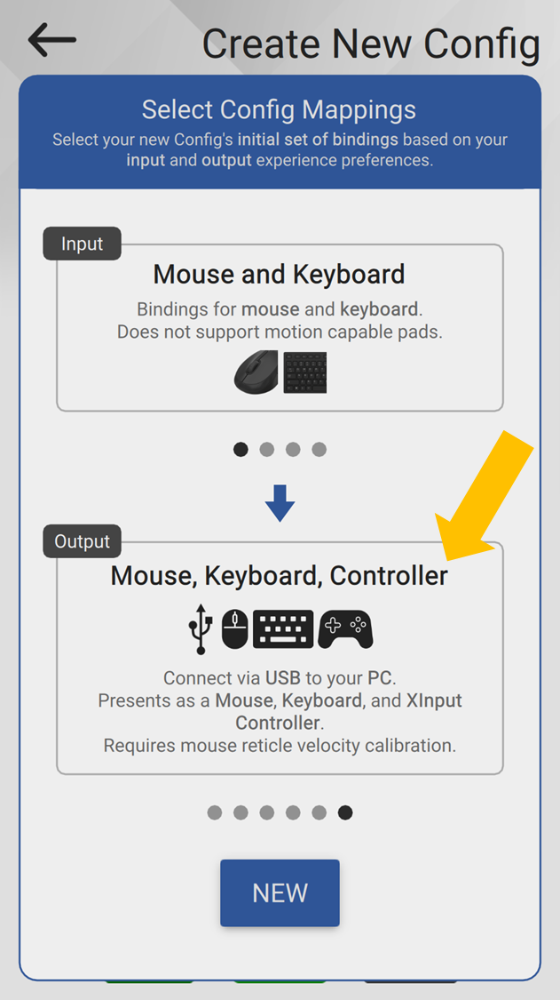
Next, choose your inputs and outputs. For an XInput PC Config, you have two choices: Controller (PC), or Mouse, Keyboard, Controller.
Controller
Choose the output method that matches your setup:
- XInput Output, select Controller (PC XInput)
- Xbox Controller Output, select Controller (Xbox, PS, PC)
- DualSense Controller Output, select Controller (Xbox, PS, PC)
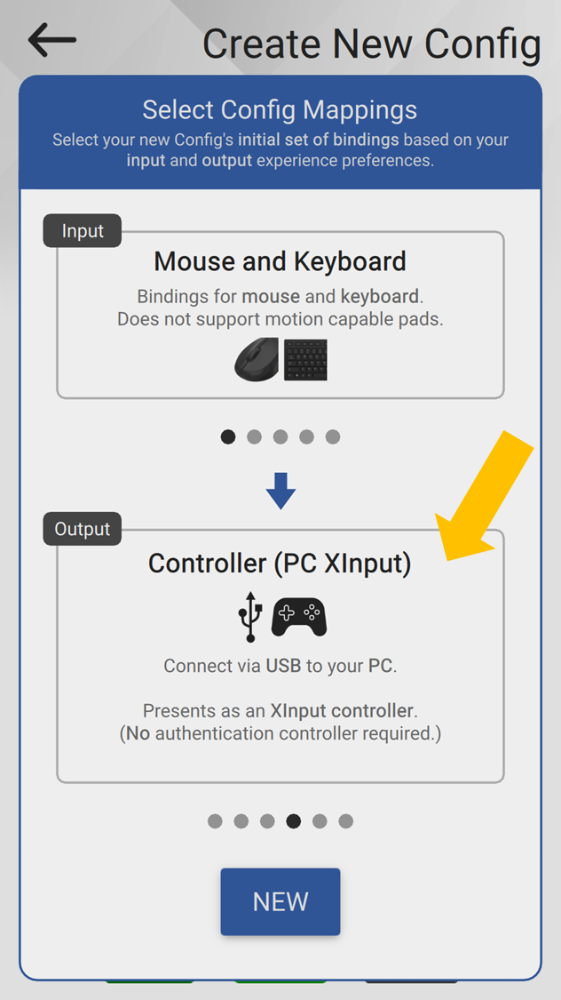
Warning
Remember the need for an authentication controller connected to Port 3 (●●●) if outputting as Xbox or DualSense controllers.
Mouse, Keyboard, Controller
When you choose this method, your XIM MATRIX will present as an XInput controller, mouse, and keyboard. Bindings are still set up for controller aiming.
Note
Authentication controllers are not supported with this method.
Tip
Select this method so you can still use your connected mouse and keyboard on your desktop. Toggle Navigate Mode to pass them through.
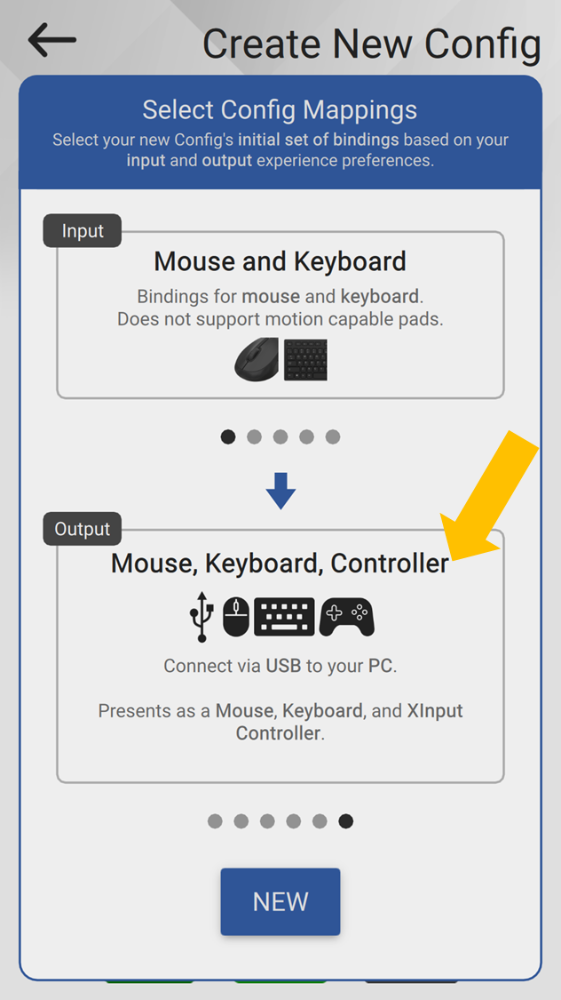
Press "New" to create your Config. It may take up to 30 seconds for your Config to be created.
Required Game Settings
When a new PC XInput Config is added to your XIM MATRIX, you may be reminded that you must set your game's in-game sensitivity to maximum (aim sensitivity is then customized in your Config).
Or, if you are a controller gamer (and the game has support for it), aim is customized in your game and settings are copied to your Config.
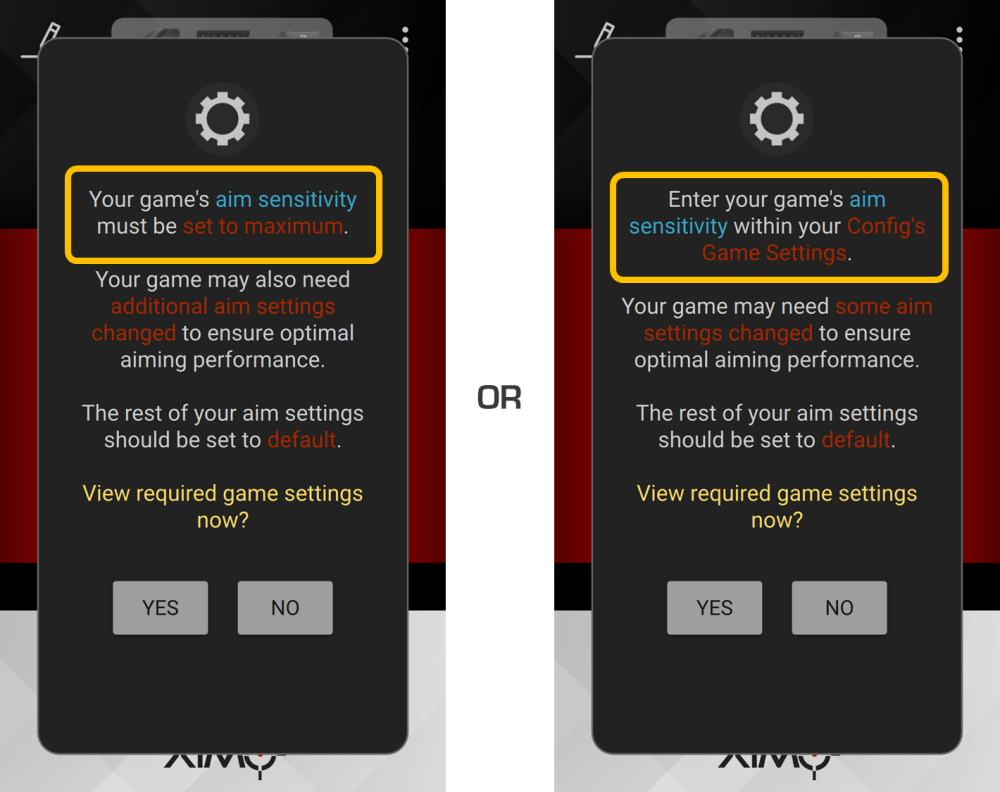
In all cases, there may be additional game-specific setting requirements you will need to follow. The rest of the settings should be remain at default.
Warning
Failure to configure your game's required settings correctly will result in negative aiming performance and the inability to effectively share and use Configs from others.
If you need to check required in-game settings at a later time, press the gear icon on Manager's main screen.
Completed Connection
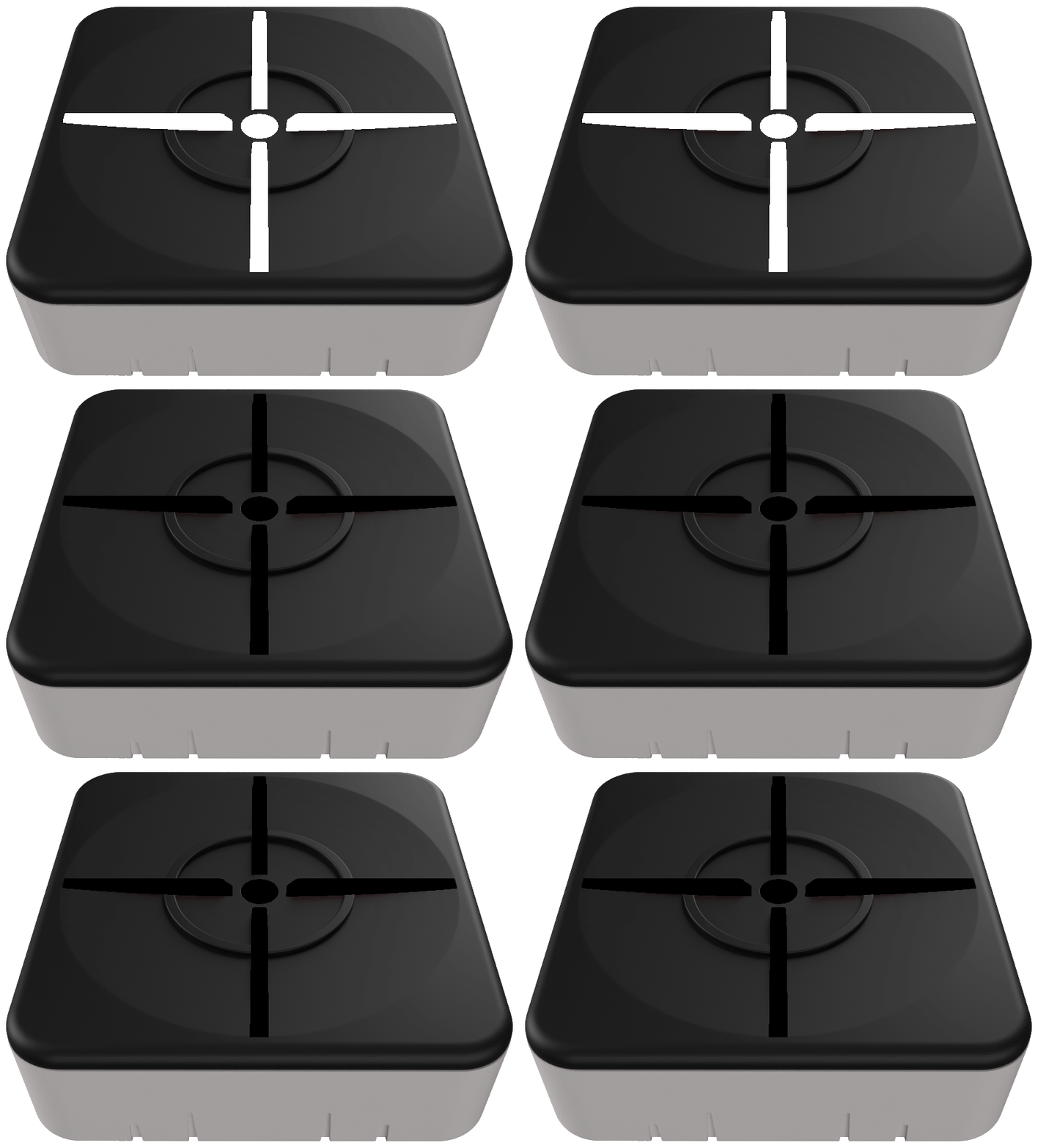
As your XIM MATRIX works to connect to your PC, it will quickly blink white twice repeatably.
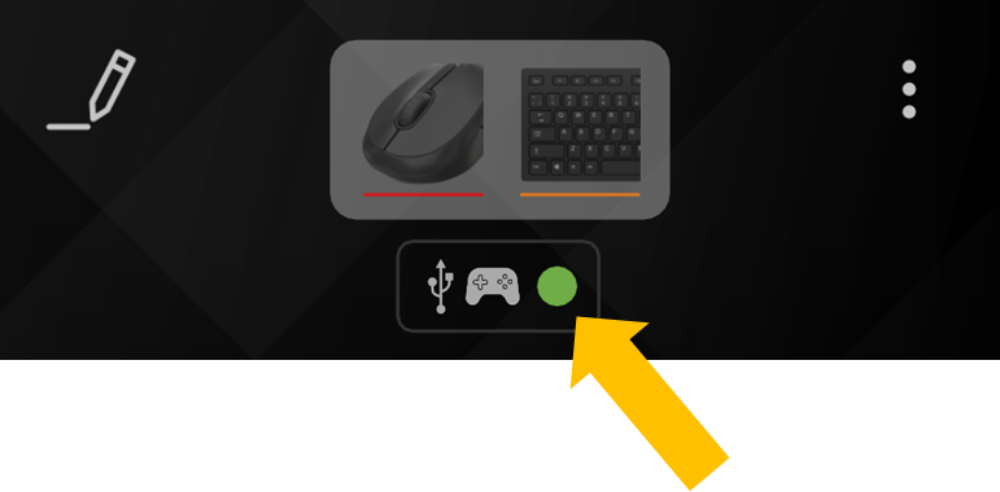
When your XIM MATRIX successfully connects to your PC, you will see a green connection dot in Manager.
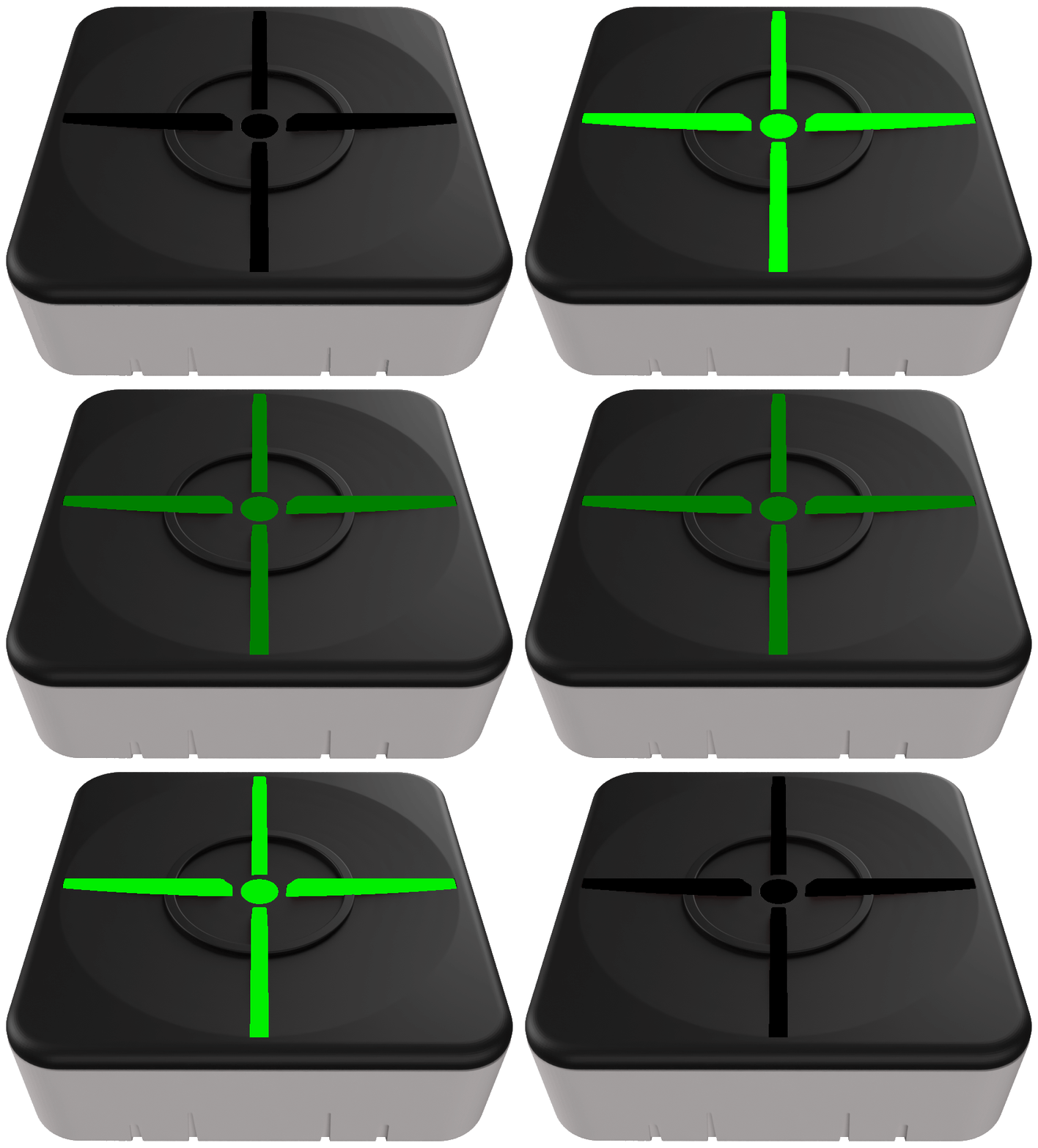
And, your XIM MATRIX will quickly flash green upon successful connection as well.
Troubleshooting
If your XIM MATRIX isn't connecting to your PC, please follow our PC Troubleshooting steps.