Simulate Analog Behavior
Simulate Analog Behavior (also called "SAB") is used to simulate natural human behavior patterns. It will make the sticks and triggers being sent to your console or PC appear more analog.
Simulate Analog Behavior is only available for Configs that output as controller.
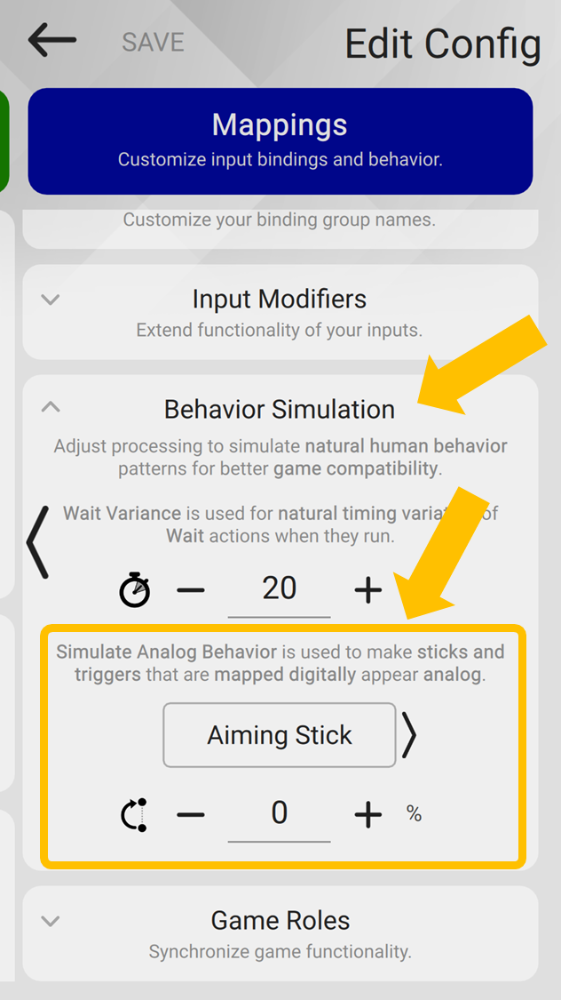
To access, press the "..." under Mappings and select Behavior Simulation.
When To Use
Your XIM MATRIX takes input from your preferred gaming devices and outputs to your console as a standard controller.
Some games include additional input requirements that define how a controller can physically interact with the game. Using SAB and following this checklist of hardware and additional Config requirements will allow you to play within the game's rules.
Info
It is not a goal of XIM to bypass or otherwise circumvent the input requirements of a game. Rather, its purpose is to provide features to allow you be compliant and play within the constraints of the game using the input devices of your choice.
Checklist
The following checklist is required to effectively play games with additional input requirements. It's important that every item on the list is correct. For more details on an item, select the link:
Checklist
- Turn SAB on with Aiming Stick, Movement Stick, and Triggers all set to 50% or greater
- Wait Variance in on
- Aim Variance is on
- No keyboards (digital or analog) for player movement, use true analog input only
- Do not use maximum in-game sensitivity
- Ensure all other required in-game settings are correct
- Set your mouse between half to highest DPI and make sure it's correct
- Ensure your mouse sensitivity is not faster than 20 cm/360
- Make sure you have input smoothing enabled
- Do not disable variance on bindings
- Do not use aiming curves
- Do not use input quantization
- Do not use velocity mapping
- Do not use Smart Actions that produce continuous stick activity
- Do not use Smart Actions that produce erratic stick activity
- Do not use Smart Actions that pull triggers or press buttons at inhuman rates
- Connect to your Playstation 5 via USB (not Remote Play)
- Only use standard update rate with your console or PC
- Do not use the Mouse, Keyboard, Controller output type
- Do not install or use PC Manager on the same PC you are gaming on
Warning
Do not report any compliance issues with the game you are playing unless every item on this list followed exactly.
Turn SAB On
To access, expand Behavior Simulation and:
- Set Aiming Stick to 50%
- Set Movement Stick to 50%
- Set Triggers to 50%
Important
All values should be 50% or above regardless of the input devices you are using (this includes controller gamers as well).
Tip
To access each SAB setting, use the left and right scroller buttons.
By default, these values are 0%.
Wait Variance On
Wait Variance is used to add slight timing variations of Wait Actions in your Smart Action Sequences.
By default, this value is 20%.
Aim Variance On
Aim Magnitude and Aim Angle is used to add sight aiming variations to Aim Magnitude Actions and Aim Angle Actions in your Smart Action Sequences.
By default, these values are 2.5°/s and 2.5° respectively.
No Keyboard Movement
Warning
No digital keyboards (i.e. "WASD") or analog keyboards for player movement.
Only use a true analog stick for player movement. When combined with mouse aim, this is known as hybrid input and is a unique combination that XIM MATRIX enables and great way to game.
Some examples of analog movement devices are:
- Simply using the left side of a supported gamepad
- A dedicated keypad with integrated stick (such as Azeron)
- A device that can augment a keyboard with a stick (such as Maxxstick)
To create a new hybrid Config, choose Mouse and Gamepad.
Lower In-Game Sensitivity
When using SAB, you will need to turn your game's aim sensitivity down so it's not at or near maximum.
Tip
Reduce to lower than 90%. If you are gaming with a mouse, reduce even lower if you aren't hitting the maximum turn speed of the game.
If you are using a Config that doesn't support custom in-game aim settings, you can recalibrate your aim by performing a Velocity Calibration.
Required In Game Settings
Other than lowering your in-game sensitivity, ensure all other game settings match those listed on the official required game settings list.
Warning
If a game has aim setting combinations that aren't supported by SAB (such as specific aim response curve values), they will be mentioned in the required game settings list.
Ensure Mouse DPI
SAB is dependent on your mouse DPI being correct. Gaming mice are complex configurable devices and may not be running at the DPI you believe you have set.
- Set your mouse DPI between half to its maximum value
- Verify your mouse DPI by running the DPI measurement tool
- Make sure your mouse DPI value is entered correctly into your Config
Ensure Mouse Sensitivity
Make sure your mouse sensitivity isn't faster than 20 cm/360.
Tip
Remember that higher cm/360 values are slower.
Input Smoothing On
Make sure your mouse or motion aim smoothing is not disabled.
It's recommended you use one of the smoothing presets. If you are using "custom", ensure you do not reduce smoothing intensity below that of the presets.
Binding Variance On
It is possible to disable behavior variance per-binding. Typically this is done for Recoil Control sequences.
Important
Make sure variance remains on for all your sequences.
No Aiming Curves
Do not use any aiming curves other than the default linear.
No Quantization
Do not enable input quantization (default is off).
No Velocity Mapping
Do not use velocity mapping (default is Standard).
No Continuous Stick Actions
Never use any Smart Action sequence that results in continuous movement of the thumbsticks. Such sequences include Orbital Aim Assist and Stick Drift sequences.
No Erratic Stick Actions
Never use any Smart Actions sequence that results in erratic or otherwise inhuman thumbstick behavior. Such sequences include Jitter Aim sequences.
No Inhuman Button Rates
When creating auto-fire or other button press Smart Action sequences, choose Wait action values are that run at a rate within human ability.
Tip
Remember that Wait Variance both increases and decreases Wait action times so consider this when authoring your sequences.
PS5 USB Connection Only
XIM MATRIX's standard connection method to PlayStation 5 is through the Remote Play network protocol. Do not use this method, but rather connect directly via USB:
- Use a converter such as P5 General or Brook FGC2
- Play the PlayStation 4 version of the game (if exists)
Standard Update Rate Only
When configuring the output connection mode of your Config, you can choose how fast you want your XIM MATRIX to update your console. Keep this value at "Standard" (which is default).
No MKC Output
When connecting your XIM MATRIX to your PC, do not use the Mouse, Keyboard, Controller (MKC) output type. Rather use one of the other supported output types for PC.
No Manager On Gaming PC
If you using your XIM MATRIX to game on a PC, don't install and use XIM MATRIX Manager on the same PC. Rather, use one of the Manager mobile app options.
Warnings
You will be warned if you are using SAB with problematic settings that diverge from the checklist:

Advanced SAB
For Aiming Stick, the single value can be adjusted, or, for more fine control press the vertical "..." and adjust the following values individually:

| Inertia | Controls stick trajectory stabilization |
| Micro | Tunes stick behavior at very low aiming speeds |
| Limit | Restricts how fast the stick can move |
Warning
Do not go below 50% on any value.