Gaming on PlayStation 5
Your XIM MATRIX supports PlayStation 5 consoles.
Network Connection
Connection to your PlayStation 5 is through your local network using a wired Ethernet connection via the Remote Play system.
Communication to your console is direct and high rate. It is equivalent to USB speeds and latency. Everything occurs on your local network (not over the Internet). Your network is only used for input. Video is displayed as normal through your connected monitor or TV.
Info
For optimal results, your PlayStation 5 must also be connected wired to your local network (which is also best for multiplayer gaming in general).
To use, connect your XIM MATRIX to your network using an Ethernet cable (not included).

Your XIM MATRIX and PlayStation 5 don’t need to be connected to the same network router or switch, but, if possible it is recommended.
USB Connection Alternative
It is possible to connect your XIM MATRIX to your PlayStation 5 directly via USB without using your local network or Remote Play. It requires the use of a 3rd party device called P5General.
- Plug your P5General into port 3 (●●●)
- When creating your Config, choose the Controller (Xbox, PS, PC) output type
- Follow all other steps with the exception of the registration step
Connect Devices
First connect your devices to your XIM MATRIX.

Note
Connecting a DualSense to port 3 (●●●) is only required if you'd like to use a headset.
Input Devices
Connect your wired supported input devices to USB Port 1 (●) and Port 2 (●●), such as:
Wired Mouse and Keyboard

Wireless Mouse and Keyboard
Warning
When gaming with a wireless mouse, you may need additional setup to ensure performance of both your mouse and XIM MATRIX.
Wired Controller

Wireless Controller

Info
Wireless controllers, can be paired after your XIM MATRIX is connected to your PlayStation 5.
Connect to PlayStation 5
Make sure your PlayStation 5 is powered on and then using the included USB A to C cable (or one you supplied yourself), connect your XIM MATRIX to your PlayStation 5.
Your XIM MATRIX will turn on and display its startup rainbow sequence.
If you don't yet have an PlayStation 5 Config on your XIM MATRIX, you'll need to create one now.
Tip
Your XIM MATRIX doesn't have to be connected directly to your PlayStation 5 via USB to work unless you are using a headset. Otherwise, it can be plugged into any USB power source.
Creating a PlayStation 5 Config
To connect to your PlayStation 5, you must have a Config that has your XIM MATRIX output as a DualSense controller.
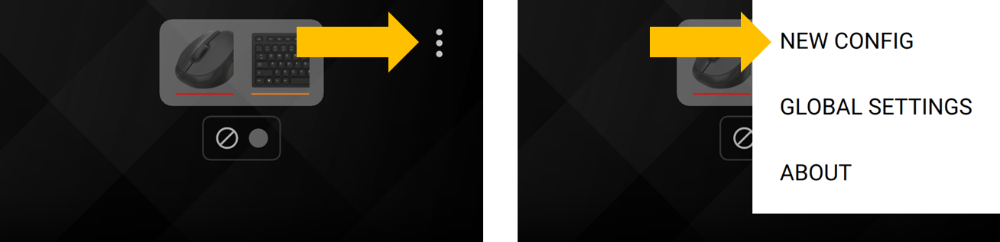
Load XIM MATRIX Manager and create a new Config by pressing the vertical "..." on the top right and selecting New Config.

Shared Configs
You can add a shared Config such as from the XIM Config Cloud library by copying the Config to your clipboard and then selecting it.
Tip
Make sure the review and follow any notes from the creator of the Config you are using.
Custom Configs
To build a custom Config, press Custom.
Select the game you are playing and the platform:

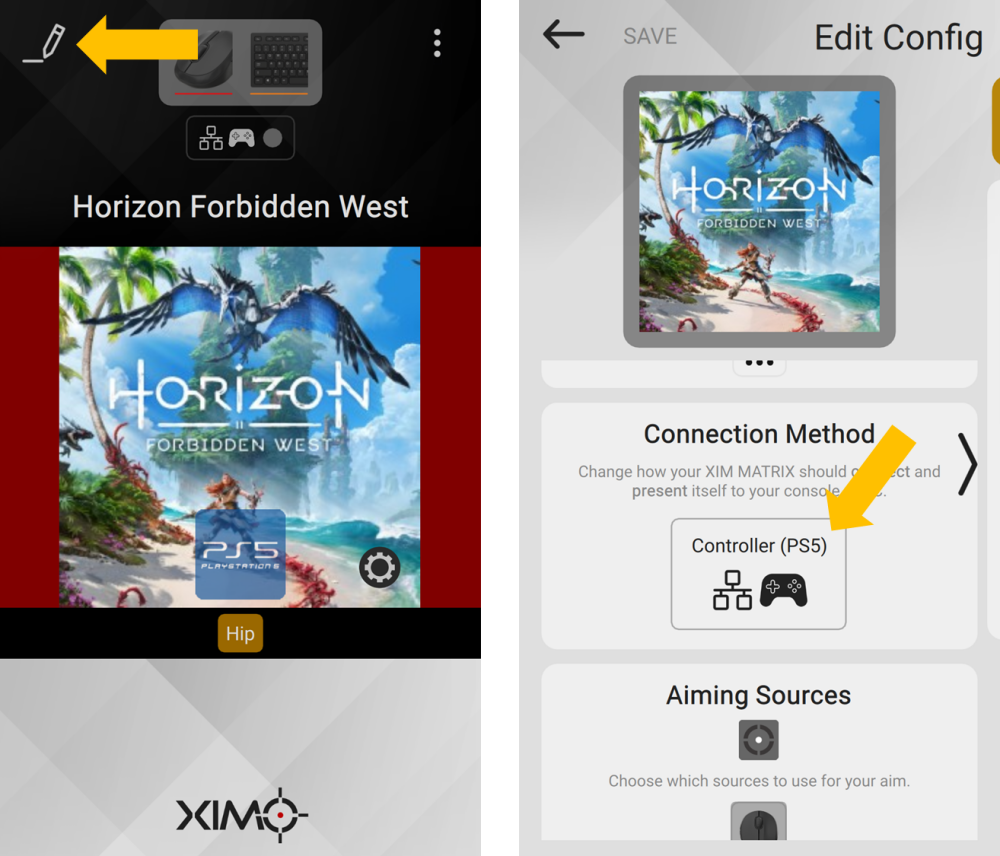
Next, choose your inputs and outputs. For a PlayStation 5 Config, the output must be Controller (PS5).

Press "New" to create your Config. It may take up to 30 seconds for your Config to be created.
Required Game Settings
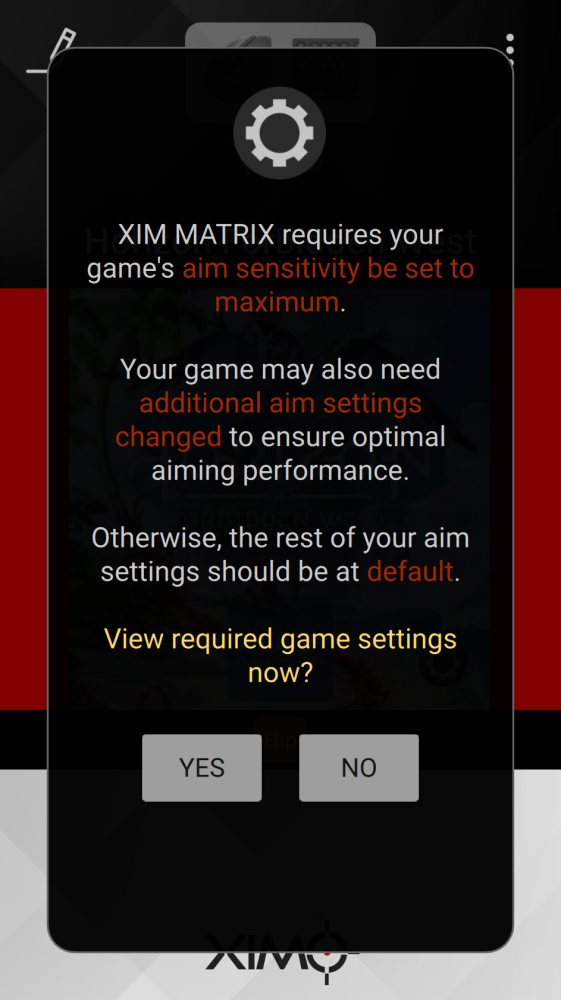
When a new PlayStation 5 Config is added to your XIM MATRIX, you may be reminded that you must set your game's in-game sensitivity to maximum (aim sensitivity is then customized in your Config).
Or, if you are a controller gamer (and the game has support for it), aim is customized in your game and settings are copied to your Config.

In all cases, there may be additional game-specific setting requirements you will need to follow. The rest of the settings should be remain at default.
Warning
Failure to configure your game's required settings correctly will result in negative aiming performance and the inability to effectively share and use Configs from others.
If you need to check required in-game settings at a later time, press the gear icon on Manager's main screen.
Registering
When setting up a XIM MATRIX for PlayStation 5 for the first time it needs to be registered.
Press the connection settings button, then scroll down and select Connection Method.

Your XIM MATRIX's current network status is displayed. Make sure it says "Connected". If not (), please check the PlayStation 5 Troubleshooting steps.
Scroll down and press Register.
Info
You can name your account and also have up to 3 PSN accounts registered on your XIM MATRIX at the same time that you can switch between.
You will be directed to Sony's PlayStation site where you will enter your Sony account information.

Note
Your Sony account information is not read or stored by XIM in any way. If you aren't comfortable with entering this information, please check with our PlayStation 5 Troubleshooting for an alternative way to register.
Once you are signed in, you'll be asked to enter a Link Key. Continue on with the steps to get your key.

To get your Link Key, using a DualSense controller connected directly to your PlayStation 5, do the following:
- Log in to your PlayStation 5 with the same account your are currently registering with your XIM MATRIX
- If you have a PIN for your account, you will need to disable it
- Go to
Settings / Networkand verify your PlayStation 5 Connection Status is Wired

- Then go to
Settings / System / Remote Playand make sure Enable Remote Play is on for your user account

- Select Pair Device
- Take the 8 digit number shown and enter it into Manager and press Connect
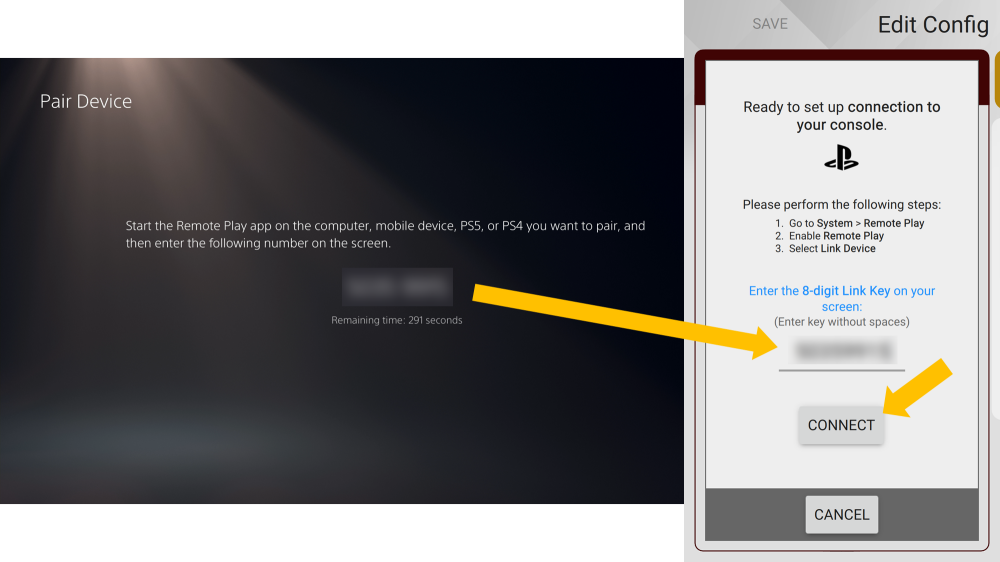
- Your MATRIX will complete registration and log on
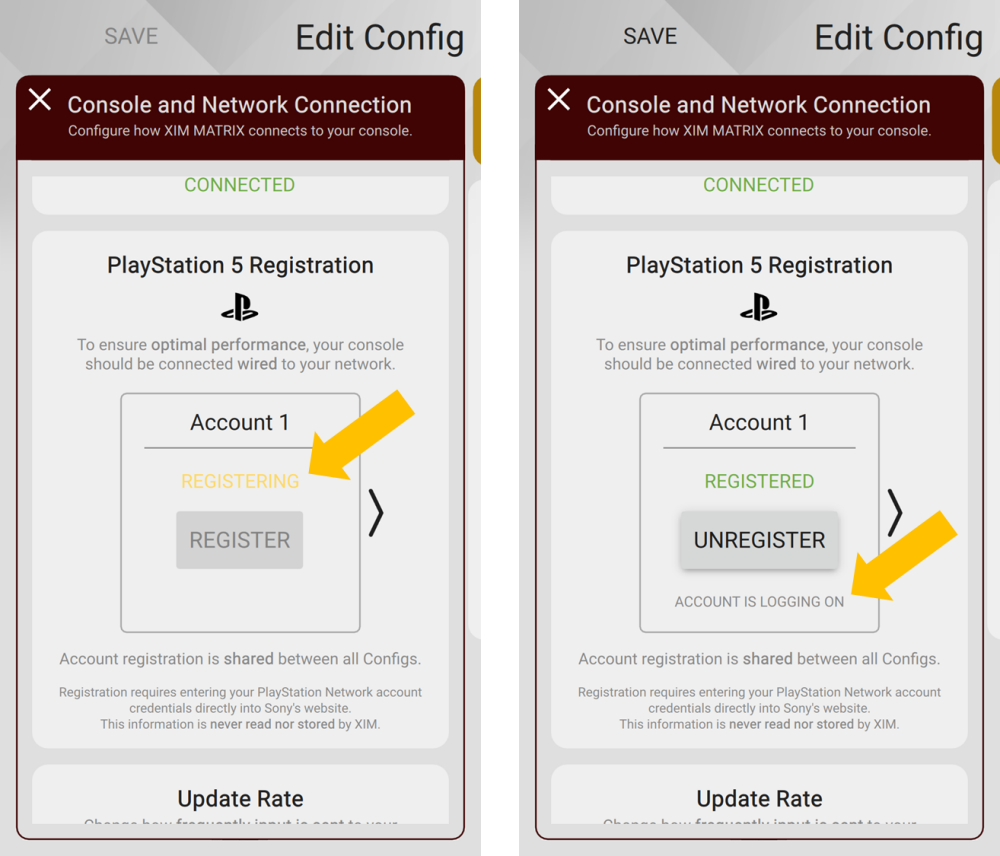
Completed Connection
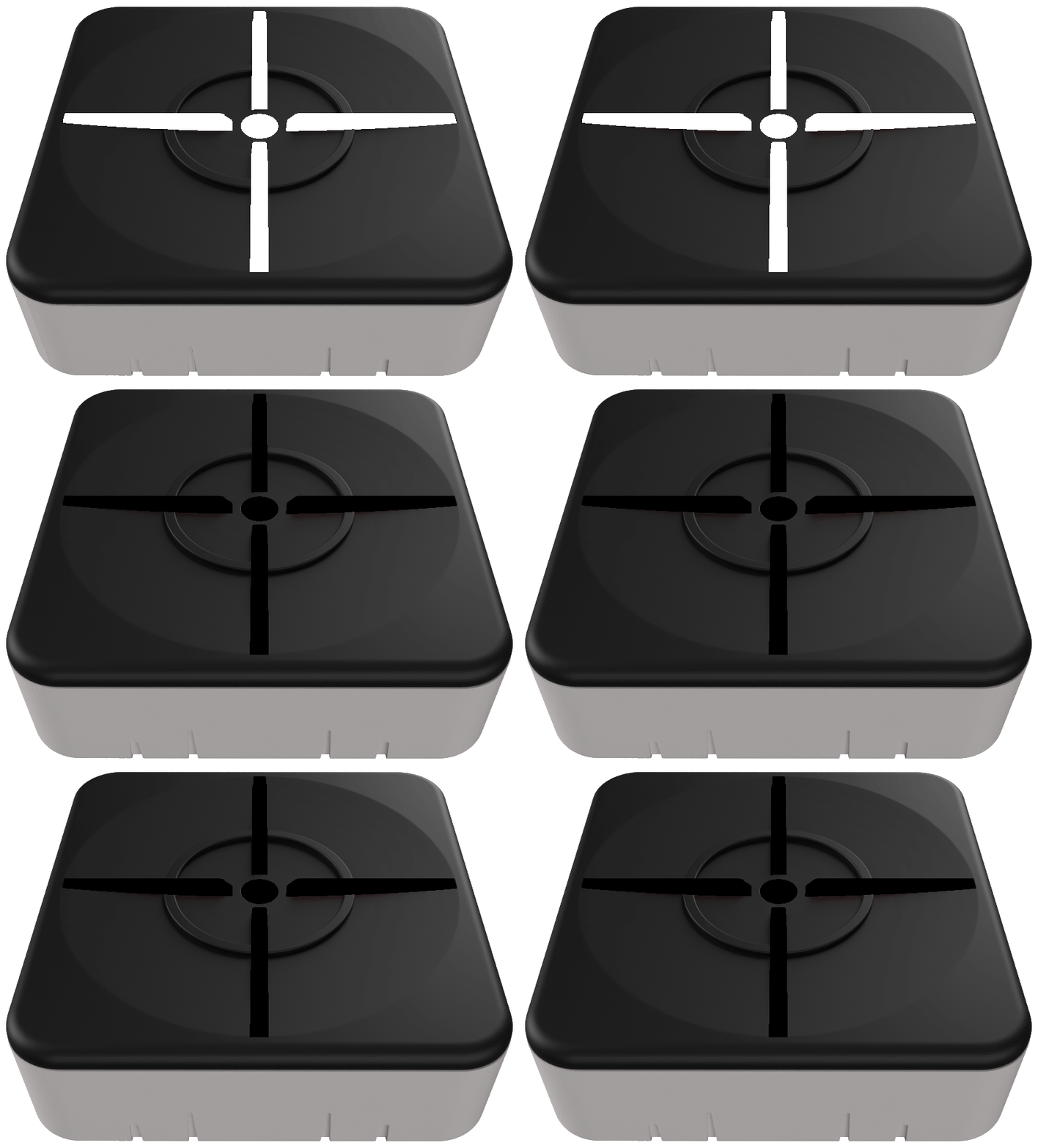
As your XIM MATRIX works to connect to your PlayStation 5, it will quickly blink white twice repeatably.
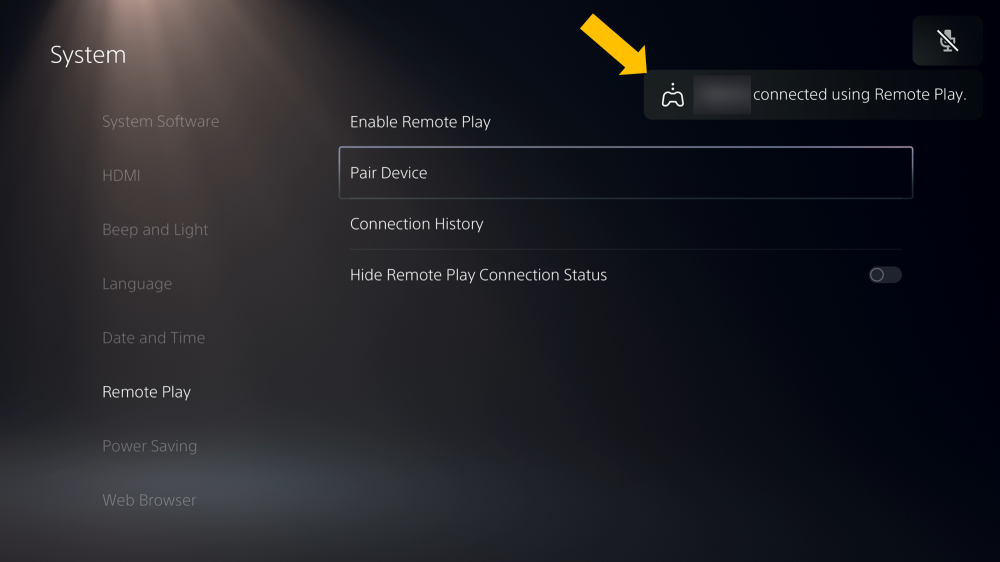
When your XIM MATRIX successfully connects to your PlayStation 5, you will see a connection popup message on your screen.
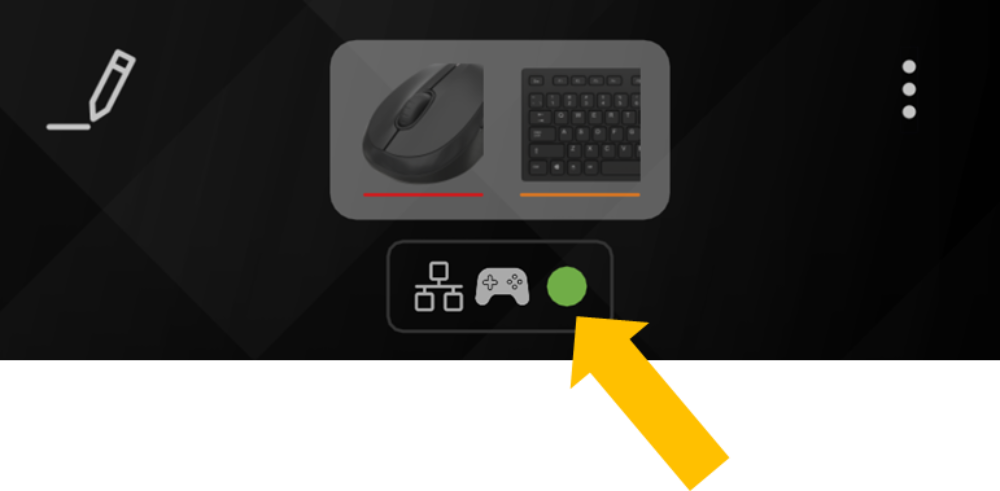
You will also see a green connection dot in Manager.

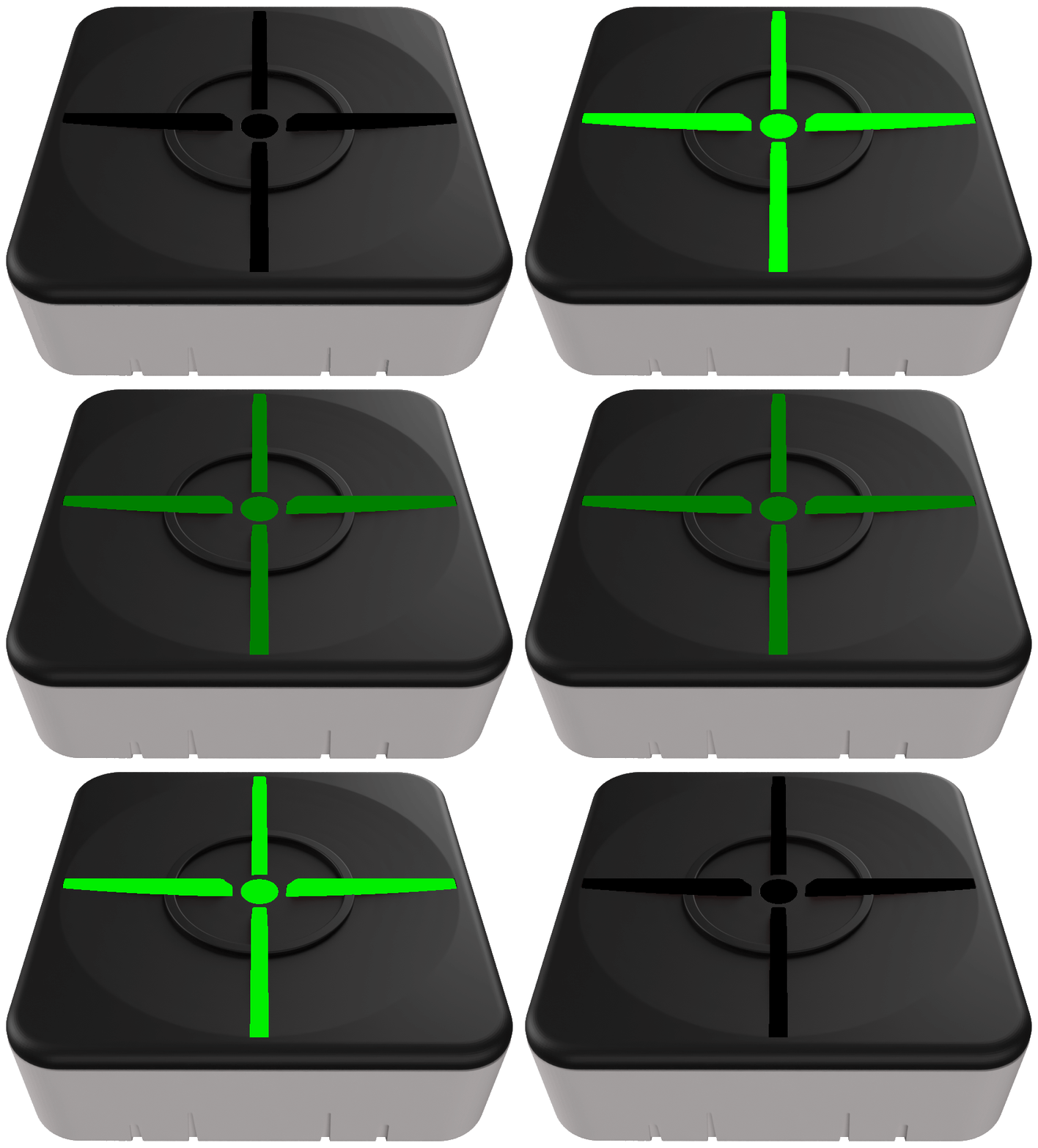
And, your XIM MATRIX will quickly flash green upon successful connection as well.
Troubleshooting
If your XIM MATRIX isn't connecting to your PlayStation 5, please follow our PlayStation 5 Troubleshooting steps.