XIM Config Cloud
The XIM Config Cloud is an online Config sharing, discovery and publishing system for XIM advanced gaming adapters.
Logging In
In order to access Config Cloud you must have previously registered with our Community Forum.

Discovering
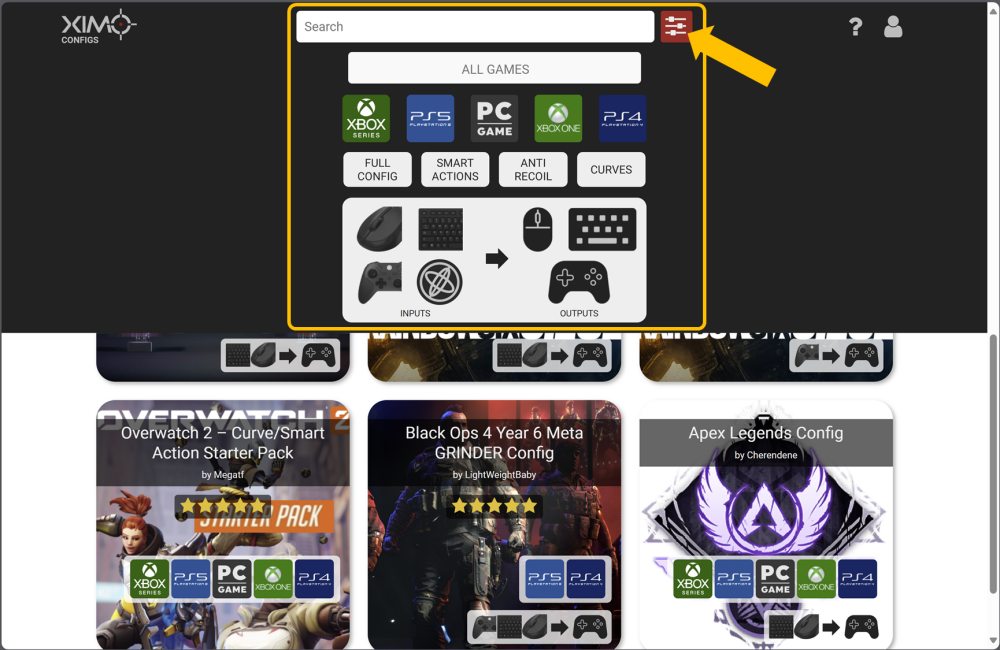
Use the search and filtering system to locate a Config, Binding, or Curve you are interested in.
Featured Configs
Featured Configs are Configs contributed by our community that the XIM Team deems as exceptional.
Configs like this are normally Universal, have versions for both controller and mouse gamers, and contains features sought after the gaming community.
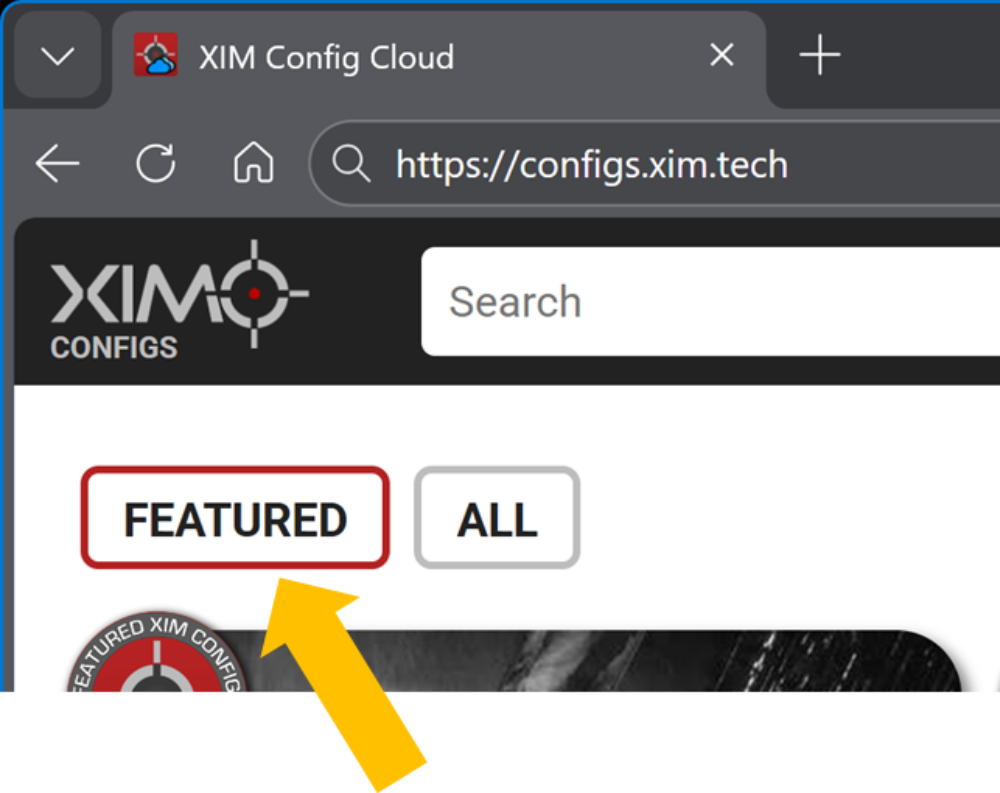
These Configs will have a Featured Config seal.

To view only Featured Configs, use the "Featured" filter on Config Cloud.
Copying Codes
The post will have Copy Code buttons.
Copied Codes are loaded through XIM Manager with a different process depending on if it's a Config, Binding, or Curve.
Configs
Adding a Config
Once you've copied your Config code to your clipboard. You can add your Config to your XIM MATRIX.
Press the vertical "..." on the top right and selecting New Config.
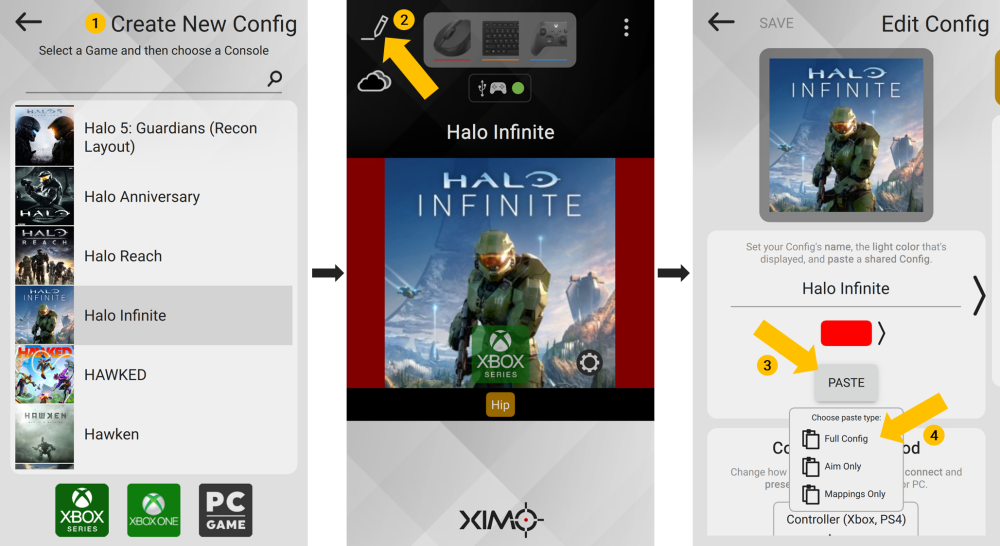
Manager will then be ready to receive the shared Config. Copy it to your clipboard and then press on the game that displays to add it.
Important
The Config may have important requirements in order to use it correctly (such as game settings or firmware version). Make sure to check the shared Config's notes.
Universal Configs
Universal Configs are a powerful XIM MATRIX feature where a single Config works across consoles and PC. When you add one, you will need to let Manager know about your gaming environment.
Specify your gaming environment (use the links for respective connection guides):
- Xbox
- PlayStation 5 (Remote Play)
- PlayStation 5 (USB)
- PlayStation 4
- PC (Xbox Controller output)
- PC (DualSense Controller output)
- PC (XInput Controller output)
If your game supports multiple aiming techniques, choose the one you want to use as well.
To add your Config, press New.
Device Settings
When you receive a shared Config, you'll need to make adjustments to it to match your gaming environment and hardware.
If the Config uses custom in-game settings, you will need to enter you game's settings into it. Otherwise, if it is uses standard, follow the instructions in Manager for correct in-game setup.

Important
Always make sure all other game aim settings match those listed in required game settings (or are at default if not listed).
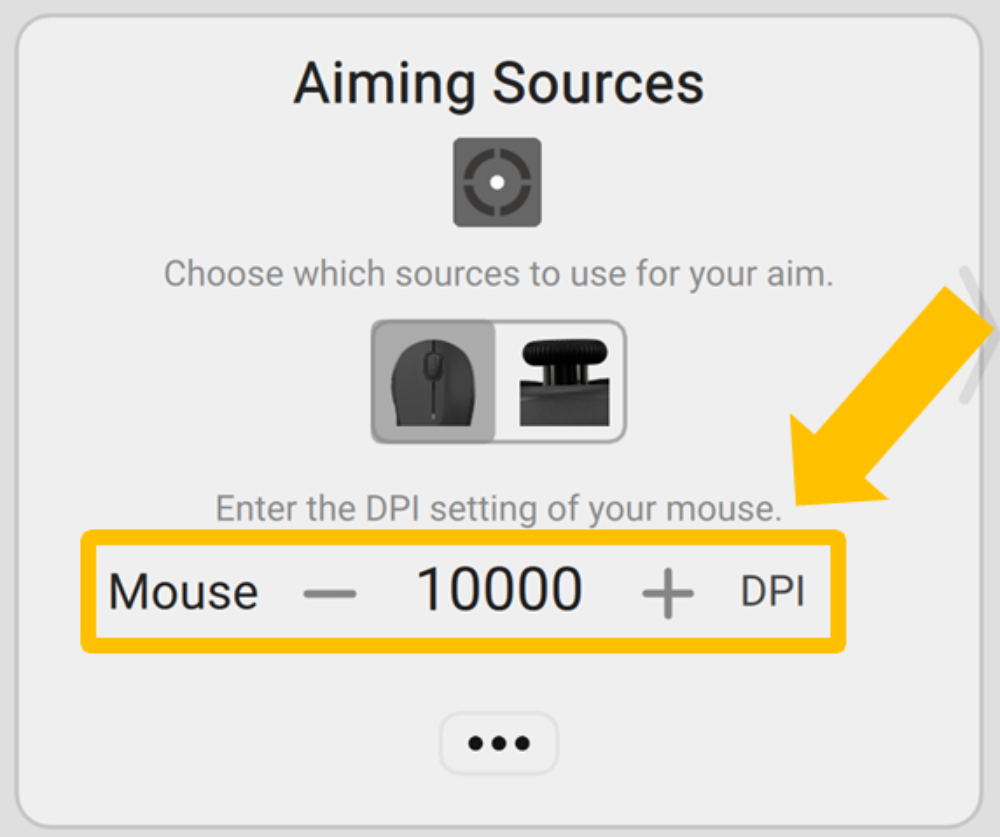
If you are gaming with a mouse, you need to enter its DPI into your Config (use the DPI checker tool if you want to verify it's correct).
Device Remapping
Configs made for different input devices than what you are using can still be used.
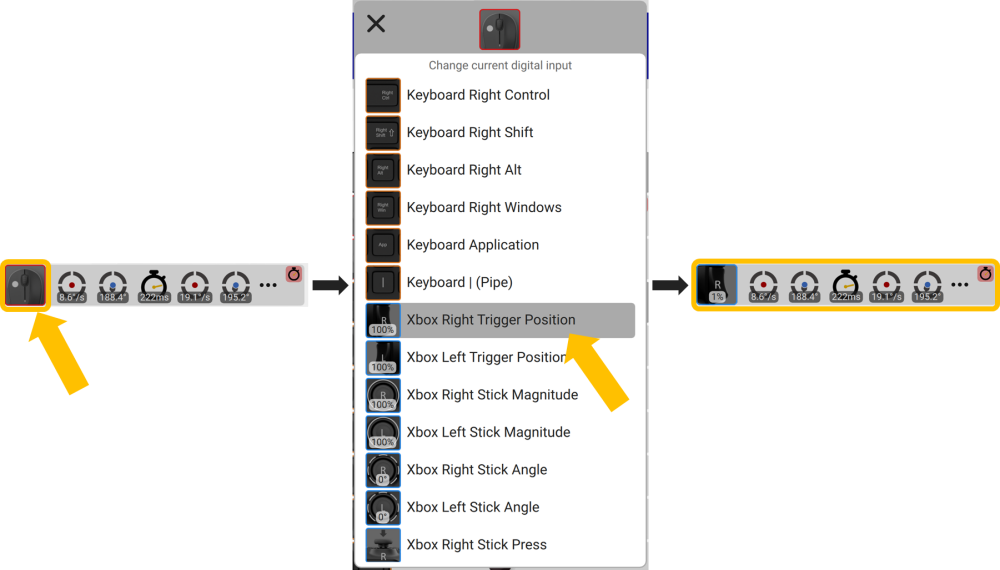
For example, if you are gaming with a controller and you receive a Config made for mouse and keyboard, simply change the inputs:
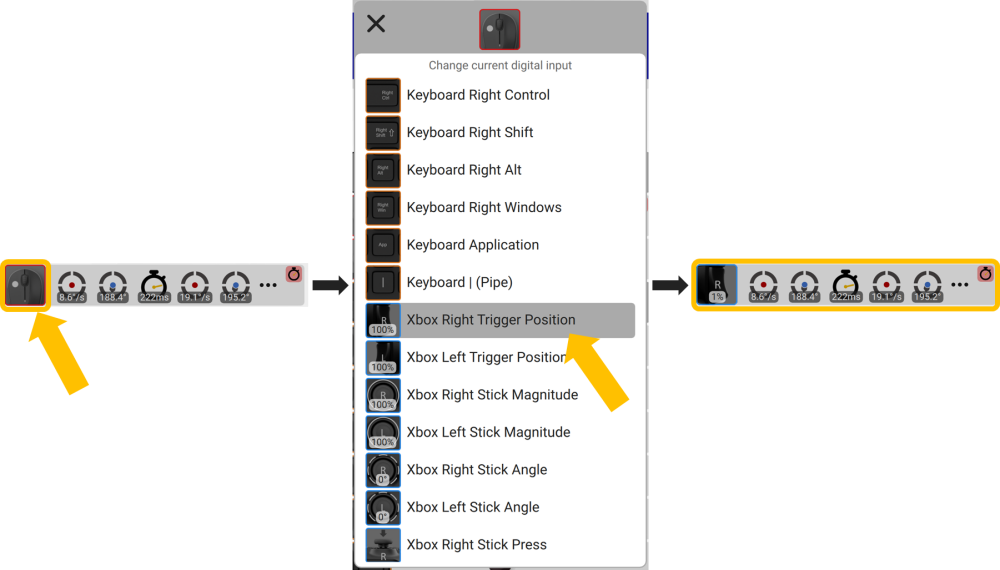
Follow the Changing Binding Inputs guide for input remapping steps.
Tip
You can also use input modifiers to extend the set of inputs you can use on a controller.
Bindings
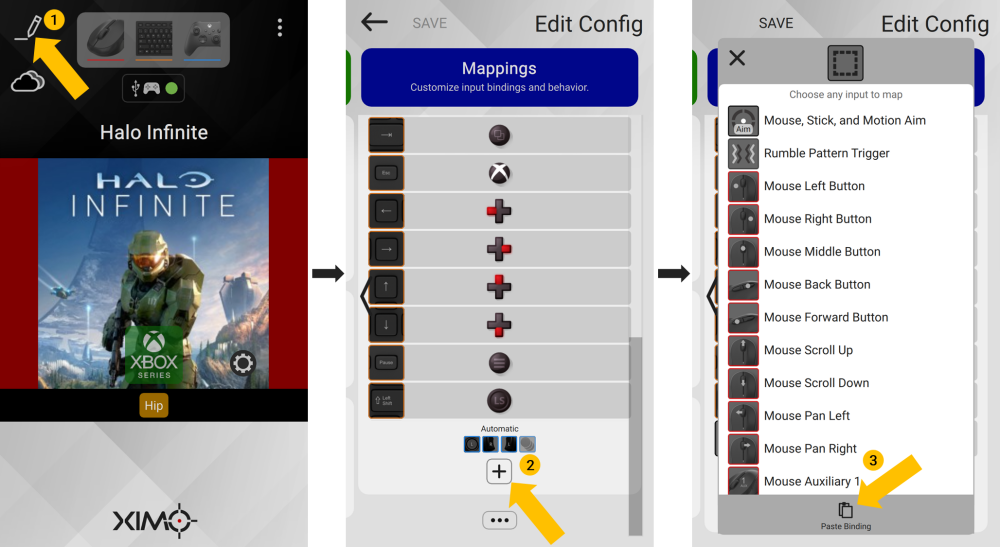
To paste a copied Binding:
- Edit your Config
- Add a Binding
- Choose Paste Binding
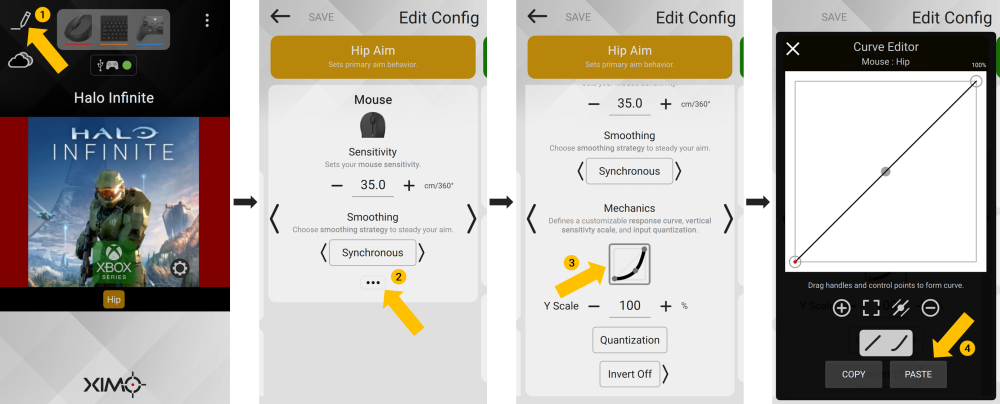
Curves

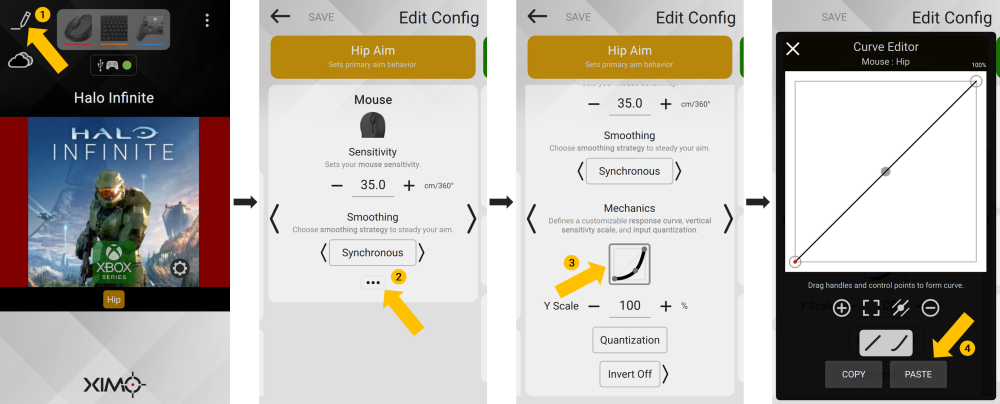
To paste a copied Curve:
- Edit your Config
- Press the "..." (for Mouse, Motion, or Stick aim)
- Open the Curve editor
- Press Paste